
Screenshots
App details
- Version
- 0.2.6
- Size
- 1.29 MB
- Updated
- October 7, 2020
- Requires
- Windows 8.1
- Language
- English
- License
- Free
- Developer
- More programs (3)
- Category
- Windows OS
SoftPas in:
This product is also available in the following languages:
About Roboget
Download Roboget – Free Windows Download Manager Beta
Roboget is a lightweight, free beta‑version download manager created by Mirinsoft for Windows 7 and newer. Launched on Softonic in November 2019, the tool aims to streamline file retrieval by providing a clean interface, segmented download streams, and basic scheduling options. Although still in its 0.2.6 beta stage, Roboget already packs enough functionality to appeal to casual users who need a faster alternative to the built‑in browser downloader. The program runs exclusively in English, which simplifies the learning curve for an international audience. Because it’s offered at no cost, the app positions itself as a “download‑first” solution that can be installed alongside other utilities without competing for system resources. Users can expect a secure, ad‑free experience, as the installer is signed by Mirinsoft and the software does not bundle unwanted third‑party software. While the beta label signals that some features may still be under development, the current build already supports multi‑threaded downloading, pause‑and‑resume capabilities, and a simple queue manager. This review will walk you through Roboget’s most compelling features, explain how to install and configure the tool on a Windows PC, and weigh the advantages against the current limitations. By the end, you’ll have a clear picture of whether Roboget is the right free download manager for your workflow.
Key Features of Roboget
- Multi‑threaded download engine that splits files into up to 8 segments for faster retrieval.
- Pause, resume, and schedule downloads, allowing you to manage bandwidth during peak hours.
- Simple queue system with drag‑and‑drop ordering to prioritize critical files.
- Integrated browser capture that automatically detects downloadable links from Chrome, Firefox, and Edge.
- Secure HTTPS support with automatic certificate verification to protect against tampered files.
- Lightweight UI built on native Windows controls, ensuring low RAM and CPU consumption.
- Exportable download list in CSV format for easy backup or sharing with team members.
- Automatic retry logic that attempts failed segments up to three times before reporting an error.
Installation, Setup, and First‑Run Guide
Getting started with Roboget is straightforward. Begin by downloading the installer from the official Softonic page or directly from Mirinsoft’s website. The installer is a single .exe file, approximately 7 MB in size, and is digitally signed to guarantee authenticity. After the download completes, double‑click the file and follow the on‑screen prompts. The wizard asks for a destination folder (default is C:\Program Files\Roboget) and whether you’d like a desktop shortcut. Because Roboget does not require admin privileges for normal operation, you can install it on a standard user account without triggering UAC warnings.
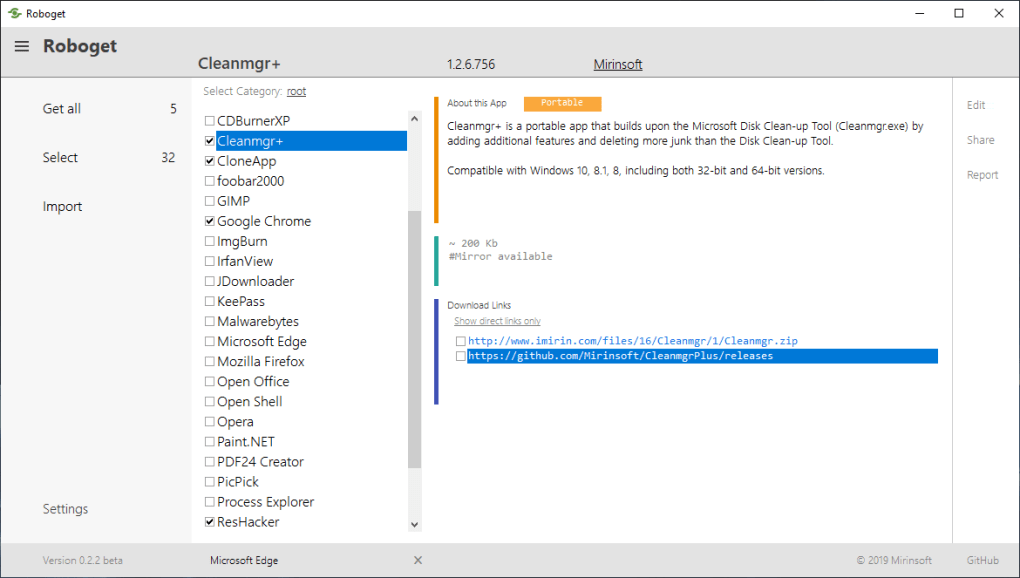
Once installed, launch the application from the Start menu. The first‑time setup wizard walks you through a few essential preferences: choose the default download folder, set the maximum number of concurrent threads (up to 8), and enable or disable automatic capture from supported browsers. For users on limited bandwidth, the “Throttle Speed” option lets you cap download rates to avoid saturating the network. After confirming your choices, Roboget opens its main window, which consists of three panes: the left pane shows active downloads, the middle pane displays queued items, and the right pane provides detailed statistics for each file.
To add a new download, simply copy the URL to your clipboard and click the “Add URL” button, or drag a link directly into the queue area. Roboget will automatically detect the file size and split it into segments based on your thread setting. You can pause any download at any time, rearrange the queue by dragging items, or right‑click for advanced options such as “Retry Failed Segments” or “Export List.” The application also includes a minimal log viewer that records errors and successful completions, useful for troubleshooting during the beta phase. Overall, the installation process takes less than five minutes, and the intuitive UI ensures that even non‑technical users can start downloading large files instantly.
Compatibility, Pros & Cons, FAQ, and Final Verdict
Operating System Compatibility
Roboget is built for Windows environments, requiring Windows 7, Windows 8/8.1, or Windows 10/11 (64‑bit recommended). The installer detects the OS version during setup and will refuse to install on unsupported platforms such as Windows XP or older. Because the beta is compiled with modern APIs, it runs smoothly on the latest Windows 11 builds, leveraging native thread handling for optimal performance. No macOS, Linux, Android, or iOS versions are currently available, but Mirinsoft has hinted at cross‑platform plans for future releases.
Pros
- Free and ad‑free, making it ideal for budget‑conscious users.
- Multi‑threaded engine delivers noticeable speed gains on high‑bandwidth connections.
- Lightweight footprint (under 30 MB RAM) ensures it won’t slow down older PCs.
- Simple, English‑only interface reduces learning curve.
- Secure HTTPS handling protects downloads from tampering.
Cons
- Beta status means occasional glitches and missing polish.
- Lacks advanced features found in premium managers (e.g., video site integration, built‑in file extractor).
- No native support for macOS, Linux, Android, or iOS.
- Limited customization options for UI themes or language packs.
- Update notifications are manual; automatic background updates are not yet implemented.
Frequently Asked Questions
Is Roboget completely free or does it include hidden fees?
Roboget is offered as a free beta download manager. The installer does not contain bundled adware or pay‑walls, and Mirinsoft has not announced any future pricing plans for the core functionality.
Can I use Roboget on Windows 7?
Yes. The minimum requirement is Windows 7 (SP1) or later. However, for the best performance and security updates, Windows 10 or 11 is recommended.
How does Roboget handle interrupted downloads?
Roboget supports pause‑and‑resume as well as automatic retry of failed segments. If a download is interrupted, the program will attempt to resume from the last saved point when you restart the app.
Is there a way to limit download speed?
Yes. In the settings menu you can enable the “Throttle Speed” option and set a maximum bandwidth limit (in KB/s) to prevent the downloader from monopolizing your network.
Will my downloaded files be scanned for viruses?
Roboget does not include an integrated antivirus scanner, but because it validates HTTPS certificates and uses secure connections, the risk of corrupted files is reduced. It is recommended to run your preferred antivirus after the download completes.
Final Verdict and Call to Action
For users searching for a no‑cost, straightforward download manager that works well on Windows 7 and newer, Roboget delivers a respectable set of core features without the clutter of ads or paywalls. Its multi‑threaded engine and clean UI make it a solid choice for everyday file transfers, especially when you need to grab large installers or media files quickly. While the beta label brings a few rough edges—such as occasional UI freezes and the absence of advanced integrations—the overall stability is sufficient for most home and small‑office scenarios. If you’re comfortable testing a beta product and can tolerate minor quirks in exchange for a free, lightweight solution, give Roboget a try. Download the installer now, set up your preferred download folder, and experience faster downloads without spending a dime.
Guides & Tutorials
How to install Roboget
- Click the Download button above.
- Once redirected, accept the terms and click Install.
- Wait for the Roboget download to finish on your device.
How to use Roboget
This software is primarily used for its core features described above. Open the app after installation to explore its capabilities.
User Reviews
No reviews yet. Be the first to share your experience.
You may also like
more
Llama 2
Free-to-use large language model As the new addition to Meta’s arsenal of langua...

NotebookLM
Revolutionizing the note-taking and idea-generation process NotebookLM is an exp...

Github co pilot
AI-inspired software development and coding platform GitHub Copilot is a browser...

Google Gemma
Google’s lightweight AI models Introducing Google Gemma , a family of cutting-ed...

AI Image Enlarger
A free app for Windows, by ai-image-larger. AI Image Enlarger is a free software...

DALL E
AI-driven text-to-image transformation engine DALL·E is a free graphic and desig...